The short answer
AI highlights for a webinar or conference session are short clips that each make one point on their own: a clear claim, an answer to an audience question, a demo step or a data slide with its explanation. A model proposes them from the transcript, the speaker changes, the slide changes and the question-and-answer segments, and an editor approves what is published. Meeting platforms now offer this for single recordings. Zoom's smart recording, for example, highlights what its AI judges the most important parts of a cloud recording and groups the recording into timestamped chapters. A media or events team publishing dozens of sessions to a website, YouTube and social feeds needs more than that: consistent selection rules across sessions, captions that name the speakers, formats for each destination and an approval step before anything goes out under the organizer's name.
Why talk content needs different rules from sports
Sports highlight systems can lean on crowd noise, commentator excitement and match data. A webinar has none of those: the value is in what is said, and the loudest moment is often applause, not insight. A good talk clip has a clean start and end. It begins at the start of a sentence or at the question being answered, not mid-thought, and it ends after the point lands, not when the speaker pauses for breath. It must make sense to someone who has not seen the previous 20 minutes, so a clip that depends on an earlier slide or a pronoun with no clear referent should be extended or dropped.
Signals that find the moments
The transcript carries most of the information: topic shifts, summarizing phrases, numbers and named examples mark candidate moments. Speaker changes show where a panel moves from one voice to the next and keep a clip from cutting off one panelist mid-answer. Slide changes and on-screen text mark section boundaries and tell you when a clip needs its slide visible to make sense. Question-and-answer segments are often the most reusable part of a session, because each answer is a self-contained response to a stated question. Treat the transcript with care and check names, product terms and acronyms in particular: give the system a glossary of speaker names and terms and correct the transcript before it drives selection or captions.
What built-in platform tools do, and where they stop
Zoom's support documentation describes three smart recording features: recording highlights, smart chapters with timestamps that viewers can click, and suggested next steps drawn from the end of the meeting. They need a cloud recording and a processed audio transcript, with cloud recording, audio transcripts and smart recording enabled, and Zoom notes that AI features may not be available in all regions or industry verticals. The host, or a user allowed to manage cloud recordings, can edit the highlights and save them as a separate clip, which uses the account's recording storage; viewers of a shared highlights clip see only the highlights. That suits an internal meeting or a single webinar. It does not by itself apply one editorial standard across a conference program, produce vertical versions for Shorts or Reels, burn in corrected captions or deliver clips with metadata to a website and social scheduler. Those steps are where a production workflow comes in.
Chapters for the full session, clips for social
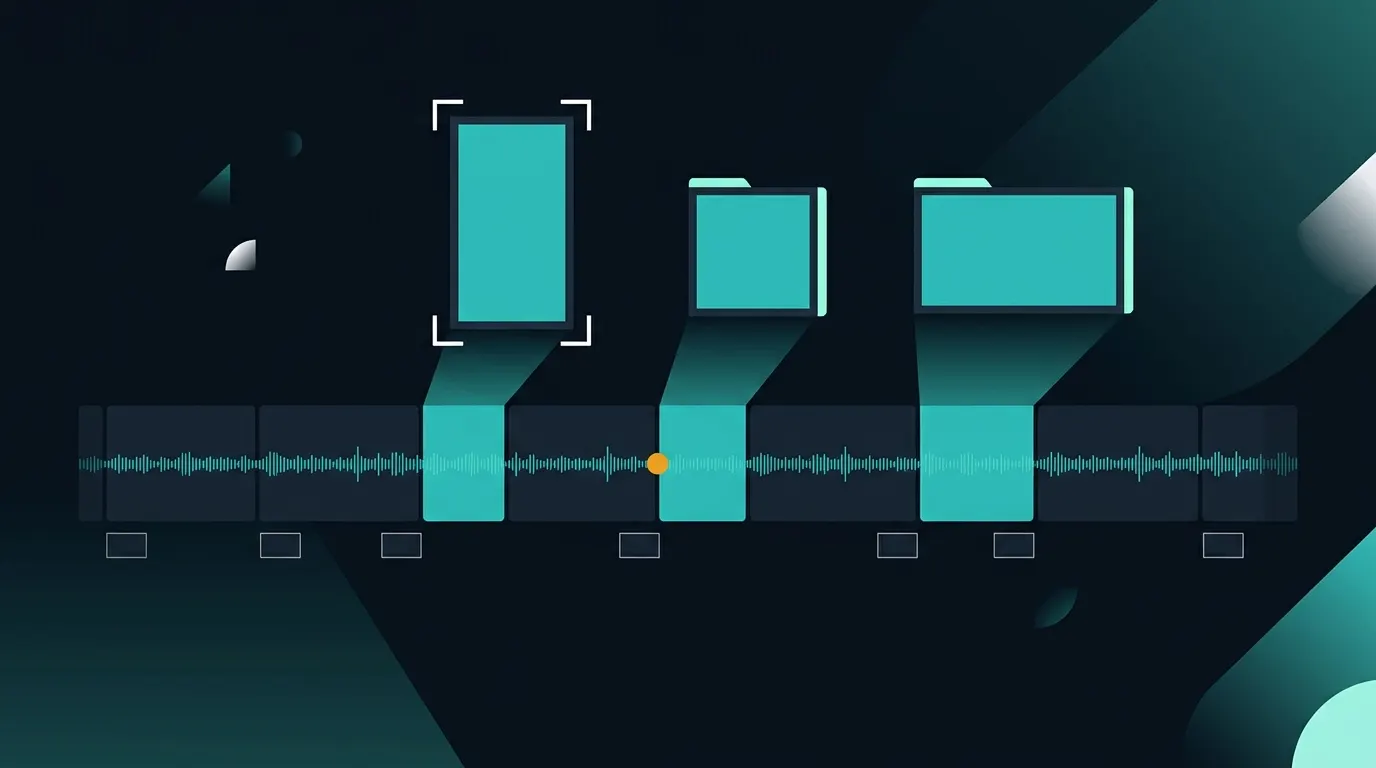
Publish the full recording with chapters and cut clips from it, rather than choosing one or the other. On YouTube, manual chapters follow fixed rules from YouTube Help: the first timestamp must be 00:00, there must be at least three timestamps in ascending order, and each chapter must be at least 10 seconds long. Automatic chapters are on by default for new uploads but not every video gets them, and your own timestamps override them. For clips, YouTube Shorts accepts square or vertical video up to 3 minutes, and YouTube warns that using copyright-protected material can lead to a Content ID claim, which matters when a presentation includes music or third-party video. Going vertical is harder with talks than it looks. A frame often holds a speaker on one side and a slide on the other, and a center crop keeps neither. Decide per clip whether the speaker, the slide or a stacked layout of both carries the point, and never crop into slide text so far that it can no longer be read on a phone.
Captions and speaker names
A clip may be watched with the sound off, so captions decide whether it is understood at all. WCAG 2.2 success criterion 1.2.2 (Captions, Prerecorded, level A) requires captions for prerecorded audio in synchronized media, and the W3C's explanation says captions should identify who is speaking and include meaningful sound information, not dialogue alone. For a panel, that means a speaker label or name when the voice changes. Correct the automatic transcript before captions are burned into a clip, especially names, company names and figures. Add each speaker's name and role as an on-screen title at the start of a clip, because a clip shared on its own loses the context of the event page.
Where Minute-ly.com fits
Minute-ly.com's Video AI Engine connects live streams, VOD and video libraries and identifies scenes, people, speakers, action and context. Depending on the configured workflow, one source can generate highlights, summaries, chapters, captions, translated versions and vertical clips, with outputs scoped and tested before production. Smart Composition recomposes horizontal video into vertical, square and other formats by following the subject rather than cropping the center, which is the speaker-and-slide problem described above. Integrations are scoped for each organization, and human review can stay in place for anything published under the organizer's name.
Checklist
Confirm what the speaker agreements allow: which sessions may be clipped, for which channels and for how long, and exclude off-the-record or embargoed sessions. Ask before publishing audience members' questions in their own voice. Give the system a glossary of speaker names and terms, and correct the transcript before selection and captioning. Write selection rules: self-contained points, answers to stated questions, demo steps and data slides with their explanation. Start each clip at the beginning of a sentence or question and end after the point lands. Publish the full session with chapters that follow your platform's rules, and cut clips for social in the formats each destination accepts. Choose speaker, slide or a stacked layout for every vertical clip, and keep slide text legible on a phone. Burn in corrected captions with speaker labels and add a name and role title. Check presentations for music or third-party video before publishing. Keep an editor's approval on every clip, and measure views, completion and clicks back to the full session rather than clip count.